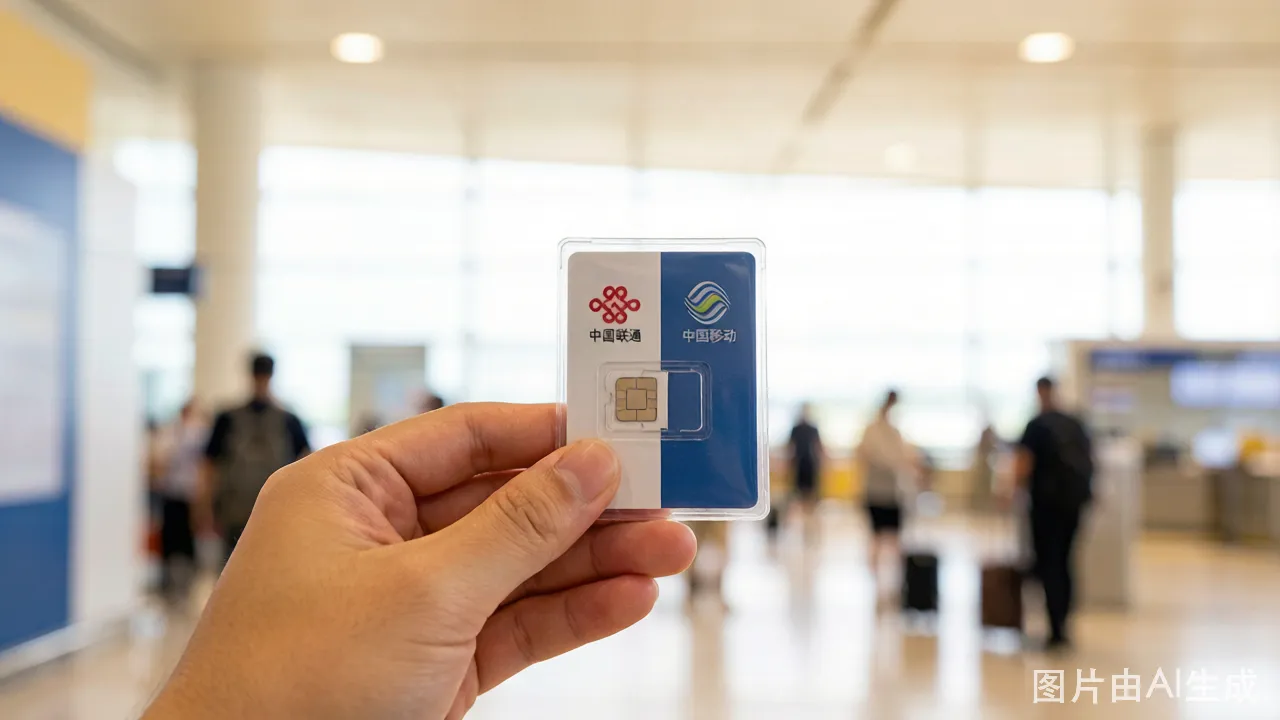

An eSIM is a digital SIM card embedded in your phone. For China travel, it solves two problems: you get connected immediately upon landing, and you skip the passport registration required for physical SIM cards.
eSIM vs. Physical SIM: What You Give Up
Before choosing an eSIM, understand the trade-off. Most China travel eSIMs are data-only — they provide internet access but no Chinese phone number.
| Feature | eSIM | Physical Airport SIM |
|---|---|---|
| Chinese phone number | Usually no | Yes |
| Data speed | 4G/5G | 4G/5G |
| Passport registration | Not required | Required |
| Activation | Before departure | At airport counter |
| Voice calls | Via apps only (no native calling) | Yes, domestic calls included |
| SMS | No | Yes |
| Price (7-day, 5GB) | USD 8-20 | 50-80 RMB (USD 7-11) |
A Chinese phone number is needed for:
- Registering on some apps (Meituan food delivery, some ride-hailing accounts)
- Receiving SMS verification codes
- Making local phone calls to restaurants, hotels, or service numbers
If you only need data for maps, translation, social media, and web browsing, a data-only eSIM is sufficient. If you need a phone number, get a physical SIM at the airport instead.
Provider Comparison — Detailed Breakdown
| Feature | Airalo | Holafly | Nomad |
|---|---|---|---|
| Pricing (7 days) | 1 GB: USD 5 / 3 GB: USD 13 / 5 GB: USD 20 / 10 GB: USD 36 | Unlimited (throttled after 3 GB/day): USD 19 for 7 days | 1 GB: USD 6 / 3 GB: USD 9 / 5 GB: USD 14 / 10 GB: USD 26 |
| Pricing (15 days) | 5 GB: USD 32 / 10 GB: USD 50 | Unlimited: USD 34 | 5 GB: USD 22 / 10 GB: USD 34 |
| Pricing (30 days) | 10 GB: USD 56 / 20 GB: USD 92 | Unlimited: USD 48 | 10 GB: USD 46 / 20 GB: USD 65 |
| Network | China Unicom LTE | China Unicom LTE | China Unicom LTE |
| 5G Support | No | No | No |
| Hotspot/Tethering | Yes | Yes (limited speed after daily cap) | Yes |
| Voice Calls | No | No | No |
| SMS | No | No | No |
| Activation | Instant upon purchase, QR code by email + app | Instant, QR code by email | Instant, QR code by email + app |
| Expiry | Starts when eSIM connects to network in China | Starts on the date you select during purchase | Starts when eSIM first connects |
| App Quality | Clean, reliable, built-in top-up | Adequate, some Android bugs reported | Good, simple interface |
| Customer Support | 24/7 in-app chat, English | WhatsApp + email, Spanish/English | In-app chat, English |
| Refund Policy | Full refund if unused within 30 days | 30-day refund if eSIM is not activated | Refund within 30 days if not used |
Which Provider Is Right for You
Airalo if you want reliability and a polished app experience. The app tracks your data usage in real time and sends notifications when you approach your limit. Top-ups are instant. The interface is clear and well-translated. This is the safest choice for first-time eSIM users.
Holafly if you use a lot of data and don't want to think about limits. The "unlimited" plan means you can stream, video-call, and upload photos without checking your remaining balance. The trade-off is that after 3 GB in a single day, speeds drop to around 1 Mbps — usable for messaging and maps but not for video. The daily reset makes this tolerable, but heavy users should plan their data-intensive tasks around the cap.
Nomad if price matters most. Nomad consistently undercuts Airalo on data-per-dollar, sometimes by 30-40% for equivalent packages. The app is less polished but functional. If you are traveling on a budget and need the best raw value, Nomad is the pick.
Screenshot Guide — eSIM Setup on iPhone
-
Open Settings → Cellular (or Mobile Data). On newer iPhones, this is the top grouping in Settings, right below your Apple ID.
-
Tap "Add eSIM." This option appears below your current cellular plan. If you don't see it, your iPhone model or carrier may not support eSIM. Check Settings → General → About → look for "EID" (a 32-digit number). No EID means no eSIM support.
-
"Set Up Cellular" screen appears. Two options: "Transfer from Nearby iPhone" and "Use QR Code." You want "Use QR Code."
-
Scan the QR code. Point your iPhone camera at the QR code from your provider's email. Hold the phone steady about 15-20 cm away. A notification banner appears at the top: "Cellular Plan Ready to Be Installed." Tap it.
-
"Continue" on the confirmation screen. The iPhone shows you the plan details: provider name, plan type, data amount. Verify it matches what you bought.
-
Label your plan. The iPhone prompts you to label this new line. Choose "Travel" from the suggestions or type "China eSIM." This label appears in Settings and helps you distinguish it from your home line.
-
Choose default line behavior. Pick your home line as "Primary" for voice/SMS and the new eSIM as "Secondary" or "Cellular Data Only." You can change this later.
-
Set the eSIM as your data line. Settings → Cellular → Cellular Data → select "China eSIM" (or your custom label). This routes all internet traffic through the eSIM.
-
Turn ON data roaming for the eSIM line. Settings → Cellular → tap the eSIM line → toggle "Data Roaming" ON. This is the step people forget. Without this, the eSIM will not connect because it is technically roaming on China Unicom.
-
Keep the eSIM OFF until you land. Settings → Cellular → tap the eSIM line → toggle "Turn On This Line" OFF. Only enable it when your plane touches down in China.
Screenshot Guide — eSIM Setup on Android
Note: Android interfaces vary by manufacturer. These steps apply to stock Android (Google Pixel, Motorola) and are close to Samsung One UI.
-
Open Settings → Network & Internet → SIMs. On Samsung: Settings → Connections → SIM Manager.
-
Tap the "+" icon or "Add eSIM." Some phones call this "Download a SIM instead" or "Add mobile plan."
-
Scan the QR code. Hold the phone over the code. Android usually auto-detects it and shows a "Found a mobile plan" prompt. Tap "Download" or "Continue."
-
Name the eSIM. Android asks for a SIM name. Enter "China eSIM" so you can identify it in dual-SIM settings.
-
Set data preference. Under "Preferred SIM for mobile data," select the new eSIM. Under "Preferred SIM for calls and SMS," select your home SIM.
-
Turn ON data roaming for the eSIM. Settings → Network & Internet → SIMs → tap the eSIM → toggle "Roaming" ON. On Samsung: Connections → SIM Manager → tap the eSIM → toggle "Data roaming" ON.
-
Disable the eSIM until arrival. Settings → Network & Internet → SIMs → toggle the eSIM OFF.
APN Settings — When to Manually Configure
Ninety-five percent of users never need to touch APN settings. The eSIM profile includes the correct Access Point Name and the phone configures it automatically. But if your connection fails after all other troubleshooting steps, check the APN:
On iPhone: Settings → Cellular → tap the eSIM line → Cellular Data Network → APN field. The provider's email/documentation includes the correct APN value (usually "3gnet" for China Unicom-based eSIMs). Enter it exactly. Do not change anything else on this screen.
On Android: Settings → Network & Internet → SIMs → tap the eSIM → Access Point Names. If the list is empty or the selected APN looks wrong, tap "+" to add a new one. Enter the APN name and value from your provider's documentation. Save. Select the new APN. Restart the eSIM line (toggle it off and on).
Which Apps Work Without a VPN
An important reality: the eSIM routes your data through Chinese network infrastructure. This means the Great Firewall still applies to your eSIM traffic the same way it applies to a physical Chinese SIM. Here is what works and what does not:
Works without VPN:
- Google Maps (browser version works; the app is partially blocked but usually loads tiles)
- Apple Maps
- Baidu Maps (highly recommended for China — more accurate than Google Maps within China)
- WeChat, Alipay, DiDi (ride-hailing), Meituan (food delivery)
- Trip.com / Ctrip
- Airbnb, Booking.com
- Gmail (app and web — reliable)
- Outlook/Hotmail
- WhatsApp (messaging only; call quality can be unstable)
- iMessage / FaceTime (works well)
- Instagram (loads but may be slow; feeds and stories update intermittently)
- TikTok (does not work — region-locked)
- YouTube, Facebook, Twitter/X, Google Search, Google Docs (all blocked — need VPN)
What this means in practice: You can text your family on WhatsApp, check Gmail, use Apple Maps to navigate, and order a DiDi to your hotel — all without a VPN. But you cannot scroll Twitter while waiting for your train or watch YouTube before bed unless you have a VPN installed and working.
Many travelers install a VPN before departure and enable it on top of the eSIM connection. This gives unrestricted access. The eSIM provides the data pipe; the VPN provides the access. Both are necessary.
Data Speed Test — What to Actually Expect
Real-world speed test results on Airalo (China Unicom LTE) in central Shanghai, midday:
| Metric | Value |
|---|---|
| Download | 12-35 Mbps (average ~22 Mbps) |
| Upload | 3-12 Mbps (average ~7 Mbps) |
| Latency (ping) | 40-80 ms to Shanghai servers; 180-250 ms to US West Coast |
| Video streaming | 1080p YouTube (via VPN) plays smoothly; 4K buffers occasionally |
| Video calls | FaceTime and WhatsApp video clear with occasional pixelation during network congestion |
| Web browsing | Pages load in 1-3 seconds; image-heavy pages take 3-5 seconds |
These speeds are adequate for everything a traveler needs. They are not blazing fast by home fiber standards, but they are consistent. In subway tunnels, the connection drops briefly and reconnects. In dense urban areas at peak hours (5-7 PM), speeds dip to the lower end of the range as the network handles more users. Rural areas and smaller towns may drop to 3-8 Mbps but still work for maps and messaging.
Holafly and Nomad use the same China Unicom network infrastructure, so speeds are roughly equivalent across providers. The difference is in data caps and pricing, not network performance.
How to Set Up — Step by Step
Before departure (at home):
-
Check your phone's eSIM compatibility. Go to Settings > About Phone and check for EID or Digital SIM. iPhones from XS/XR onward support eSIM. Most Samsung Galaxy S20+, Google Pixel 4+, and recent flagships support it. Some budget Android phones do not.
-
Disable your home carrier's international roaming to avoid accidental charges. Keep your home SIM active for SMS — just turn off data roaming on that line.
-
Purchase the eSIM plan on the provider's website or app. You will receive a QR code by email.
-
Install the eSIM profile. Scan the QR code from another device or printout. Your phone will add a new cellular plan. Label it "China eSIM" for clarity.
-
Do NOT activate the eSIM yet. Keep it disabled in your phone settings. It only needs to be turned on when you land.
Upon arrival in China:
-
Connect to airport WiFi (most Chinese airports have free WiFi — look for the network name and follow the SMS verification or passport number login prompt).
-
Enable the eSIM in Settings > Cellular/Mobile Data. Switch your data line to the China eSIM.
-
Turn on data roaming for the eSIM line. This is important — even though you are physically in China, the eSIM is technically roaming on a Chinese network. If data roaming is off, the eSIM will not connect.
-
Wait for the network to connect. This takes 30-60 seconds. You should see "China Unicom" or "China Mobile" as the network name with LTE or 5G indicator.
-
Test the connection. Open maps or a website. If it does not work, check that data roaming is on and that this eSIM is set as the active data line.